When you view a call, it opens in a dedicated view that brings together customer information, the conversation transcript, the call recording, and the activity history.
As you can see, the conversation detail page is divided into two parts: a left part and a right part.
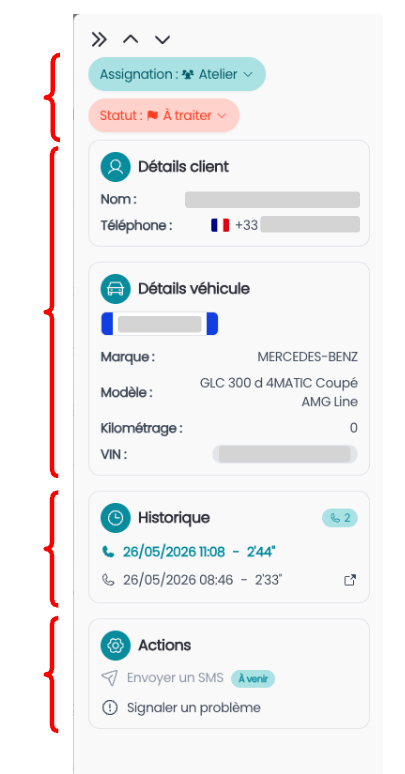
Left Zone
The left part with the assignment, status, customer and vehicle details, call history, and actions
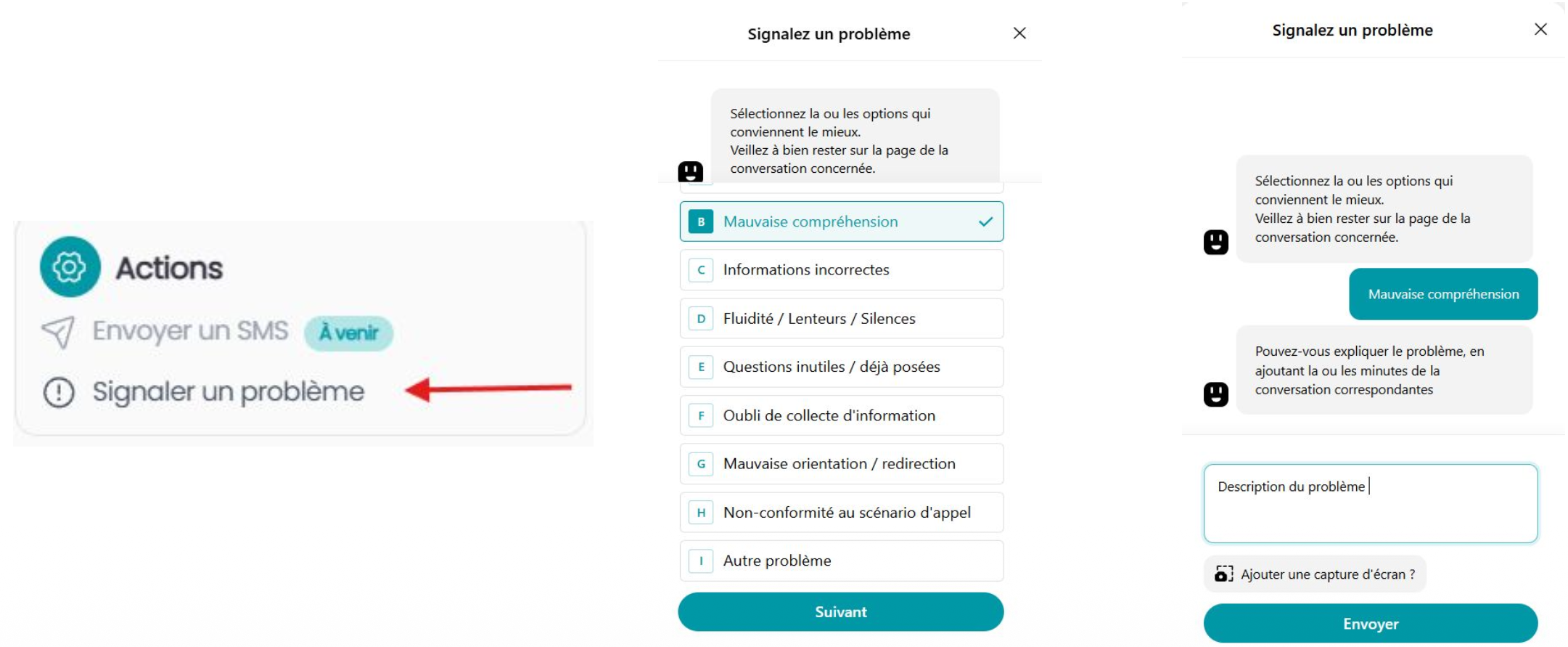
You have the ability to report an issue from the conversation: choose the reason for the report and send it to our teams. Our teams will handle your request as soon as possible.
Right Zone
The right part with the conversation details
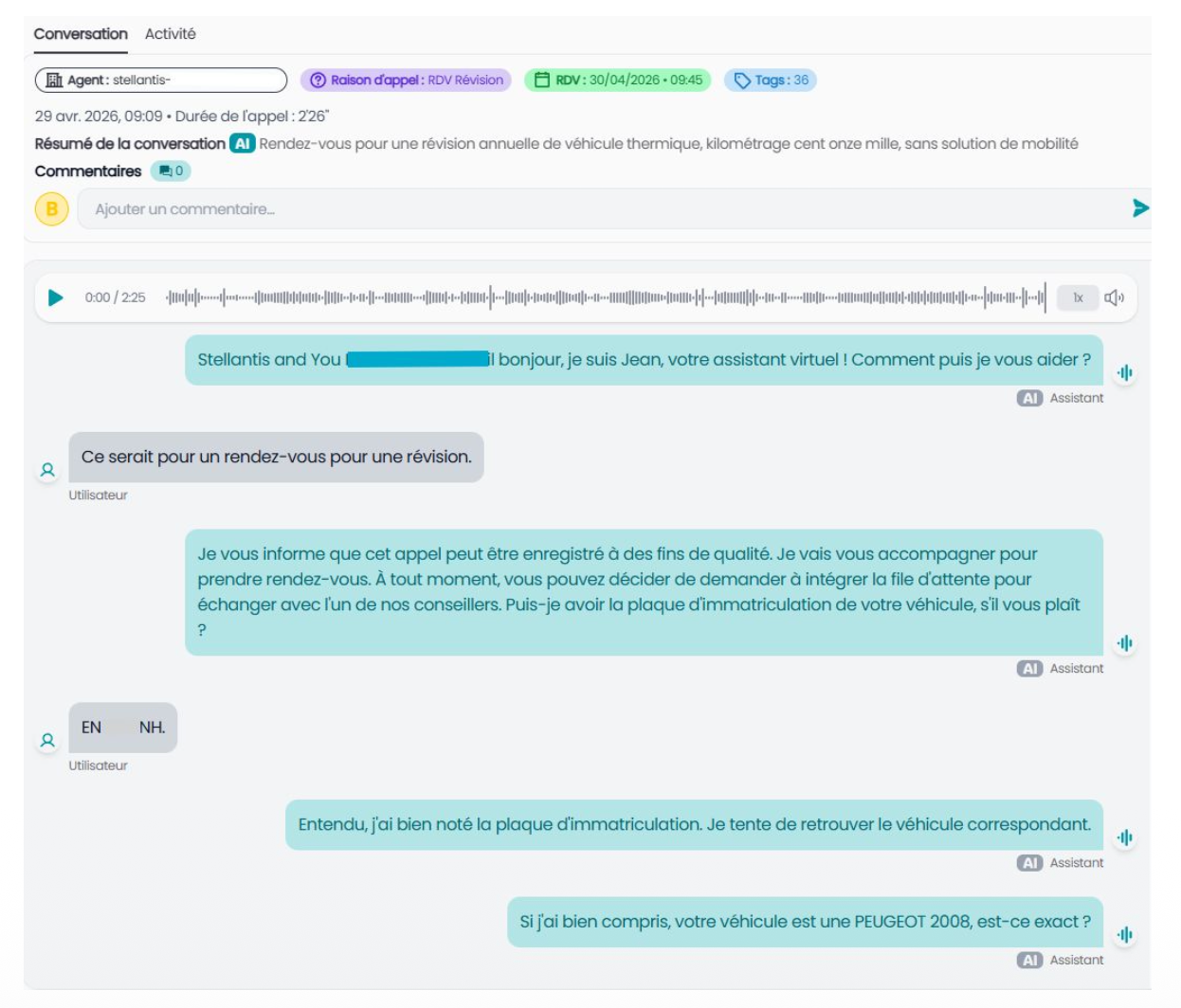
There are 2 tabs: the Conversation tab and the Activity tab
In the Conversation tab:
Top section:
You can see the most interesting tags, the date and duration if it's a conversation, or the number of messages if it's an SMS
The summary of the conversation made by AI
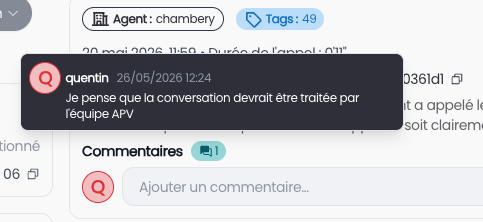
A Comments section: You can add a comment and click the arrow on the right or use the Shift + Enter shortcut.
When you hover over the comment icon, you can see the list of comments for the conversation.
Bottom section
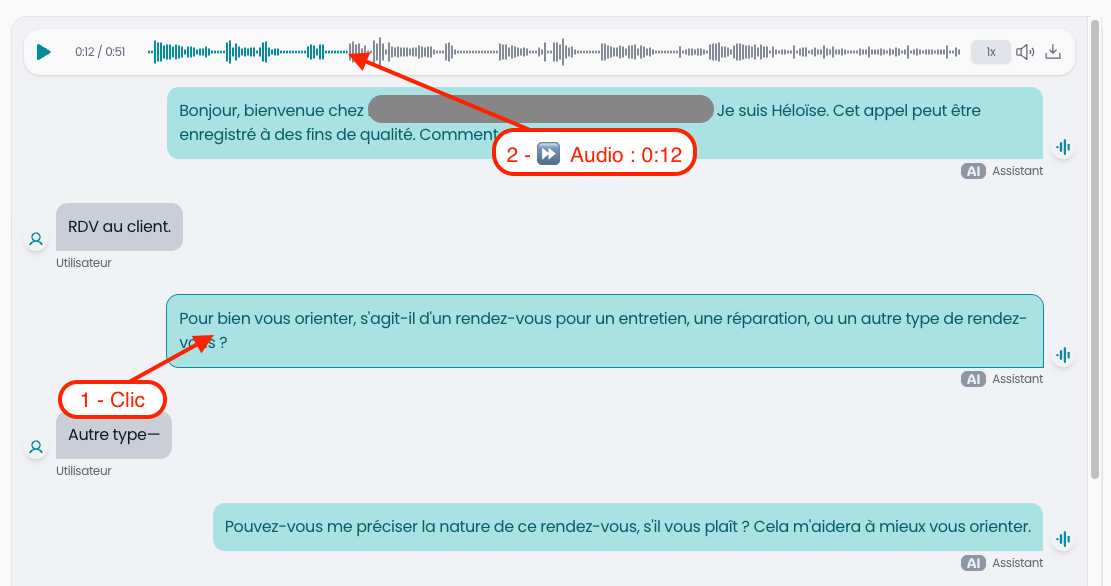
You can see the transcript and audio if it's a call.
You can adjust the playback speed.
Download is only available for Admin roles
You can also click on a message bubble in the conversation to jump directly to that moment in the audio
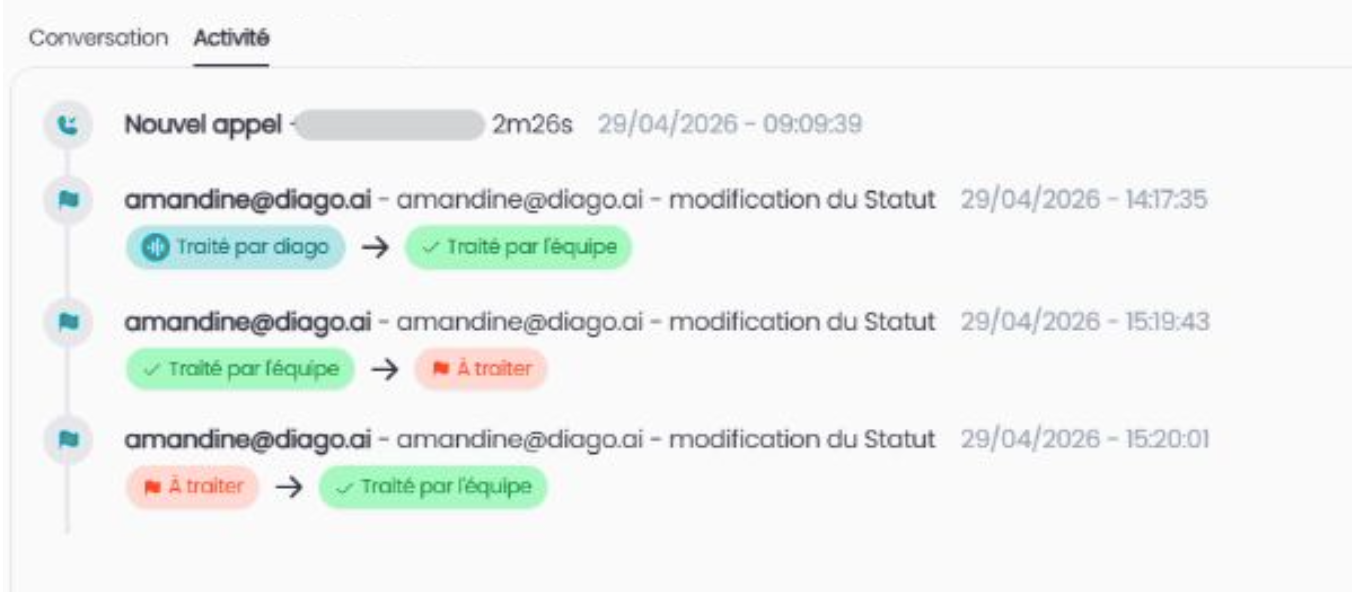
In the Activity tab
All modifications, whether status changes or assignments, can be viewed from the "Activity" tab.