
Conversation Assignment
In case of incorrect assignment of a call, it is possible to modify it manually. The designated team or colleague will then be notified by email.
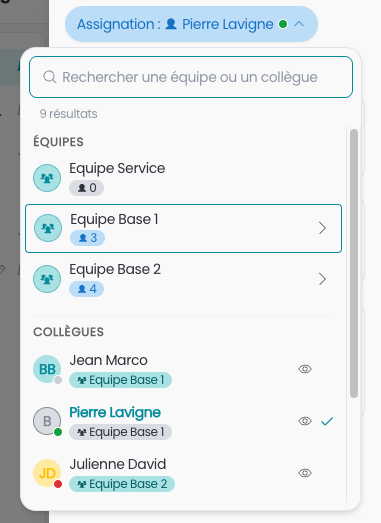
Teams and Colleagues
The assignment window presents two distinct lists:
Teams: each team can be expanded using the chevron to see the colleagues who make it up, and select one directly.
Colleagues: the complete list of your colleagues, without duplicates. If a colleague belongs to multiple teams, they appear only once here, with their primary team displayed under their name — but you can still assign them via another team they belong to by expanding it. (V6 only)
A search bar at the top of the window allows you to quickly find a team or colleague by name.
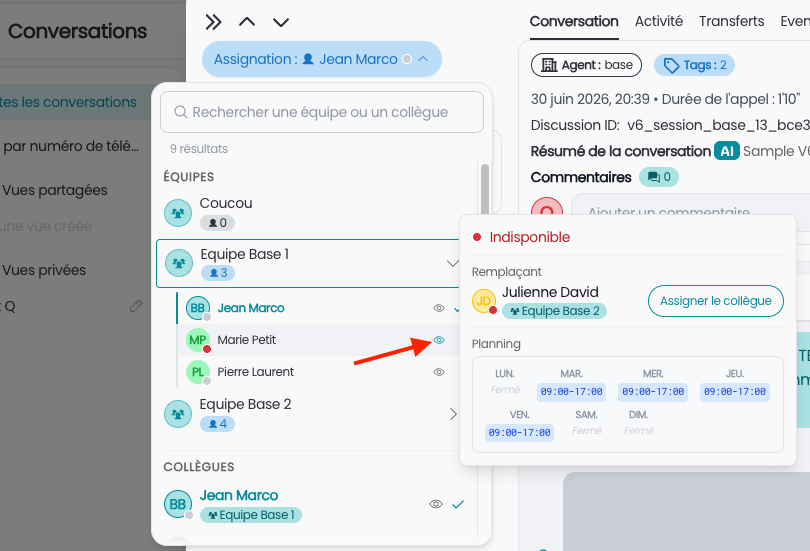
Availability and Substitute
For each colleague, an indicator (green = available, red = unavailable) is visible directly in the list. By clicking on the eye icon, you access the details of their schedule as well as the name of their replacement, if they have one.
If the selected colleague is not available, the tool directly proposes to assign the conversation to their replacement.
Tracking changes
In the detail page of a conversation, Activity tab, you can find the history of assignment changes made.
